Automatic discovery
Through Apple's own Bonjour responder, so no unusual network entitlement is involved and nothing about your network is inspected by the app itself.
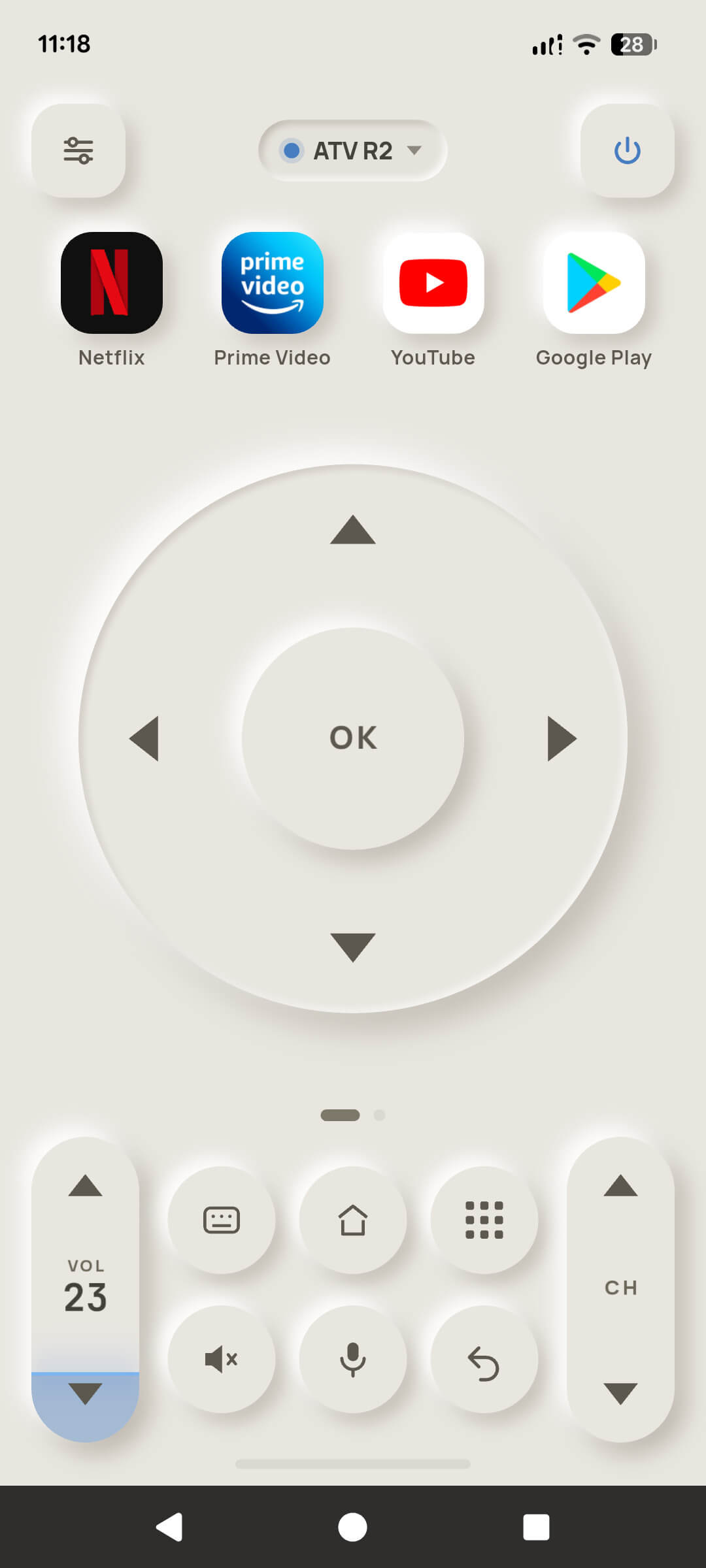
The whole remote, on iOS: discovery, pairing, the D-pad, the keyboard, voice search, app shortcuts and casting. Two features are genuinely missing, and this page says which and why — before you install, not after.
 Coming soon to the App Store
Through Apple's own Bonjour responder, so no unusual network entitlement is involved and nothing about your network is inspected by the app itself.
Always available, and the answer whenever Local Network permission or your router gets in the way.
The same six-character handshake, with credentials stored in the iOS Keychain.
All three pages, with haptics through the Taptic Engine and hold-to-repeat.
Including the live volume readout from the television itself.
Your iOS keyboard, typed straight into the television's text field. Paste works, so password managers do too.
Speech turned into text on the iPhone using Apple's Speech framework, then typed into the television's search box.
Four applications on the face, chosen and reordered — free, same as Android.
From your photo library and files, served by the iPhone itself over your Wi-Fi. Nothing is uploaded.
Shows the television you are driving and opens the remote in one tap. Free.
Free on both platforms, always.
Part of Pro, and it works on iOS.
Both are platform limits rather than choices, and we would rather you read them here than discover them after paying.
On Android the widget sends the key itself. On iOS it cannot, reliably: network calls made from a widget's App Intent are widely reported to fail when the host app is not running, and Local Network permission is per-app and unpredictable on recent iOS releases.
A remote button that works only when the app is already open is not a feature. So the iOS widget is a door: it shows which television you are driving and puts you on the remote in one tap. It is free, because it does not bypass anything.
AirPlay is Apple's protocol and Android TV does not speak it; the mirroring transport an Android TV accepts is not available to a third-party iOS app. There is no workaround that would actually work, so TV Remote does not offer one and does not charge for one.
Casting your own files still works. Photos, music and video go from the iPhone to the television normally — it is only mirroring the live screen that iOS rules out.
Four prompts, each tied to something you asked the app to do.
| Prompt | When it appears, and why |
|---|---|
| Local Network | On first use. Without it, iOS blocks the app from seeing or reaching your television at all. If you decline, Enter IP address is the way in — and the app will tell you rather than spinning a search forever. |
| Microphone | Only when you first hold the voice-search button. |
| Speech Recognition | Alongside the microphone, to turn what you said into text that can be typed into the television. |
| Photo Library | Only when you first cast a picture, so you can choose which ones. |
| Tracking (App Tracking Transparency) | Free tier only, and only for advertising. Saying no keeps everything working identically — you simply get less relevant ads. Pro removes the question's subject entirely. |