Complete feature list

Every single thing TV Remote does

The full inventory — what is free, what TV Remote Pro adds, and exactly where Android and iPhone differ. Nothing here is aspirational; if it is on this page, it is in the app.

1 · Finding your television

Discovery, pairing, and a way in when discovery fails

TV Remote speaks the Android TV Remote v2 protocol — the same one your television's own remote uses. Discovery goes through your operating system's own service-discovery machinery: Android's NsdManager, and Apple's Bonjour responder on iPhone. The app never opens a raw multicast socket of its own, which is why it needs no unusual network permissions on iOS.

  • Automatic discovery — every Android TV and Google TV device on your Wi-Fi, listed by its own name
  • Add by IP address — always available, never gated, for guest networks and routers with client isolation
  • Six-character on-screen pairing — the television displays a code, you type it, and the two devices exchange certificates
  • Unlimited pairings — pair as many phones with a television as the television itself allows
  • Identity that survives a new IP — televisions are remembered by the MAC address inside their certificate, not by an address your router may change overnight
  • Automatic reconnection with exponential backoff, so a router reboot or a walk out of range recovers on its own
  • Connected devices — a list of every saved television, renameable and removable
  • Diagnostics — a plain-language report of what the app can and cannot see on the network, shareable when you need help
  • Demo mode — try the whole remote with no television at all
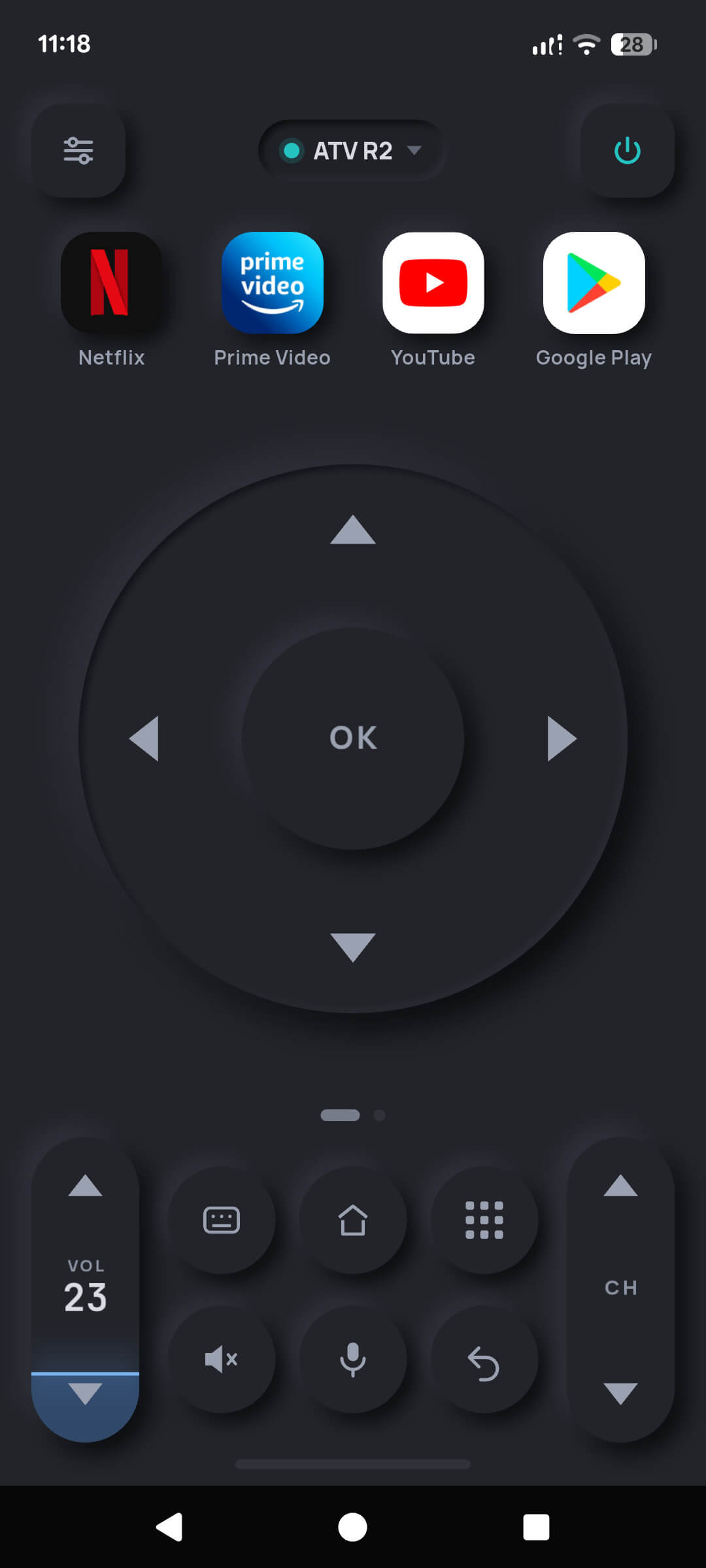
The TV Remote face connected to a television named ATV R2, with a green dot indicating a live connection
2 · The remote face

Three pages of controls, and you choose which one opens

The face is drawn rather than assembled from stock widgets, so every key has real bevels, real shadows and a specular highlight. It is a product requirement here, not decoration: a remote you use in the dark has to be readable by shape alone.

D-pad page

  • A large directional ring with a centre OK, thumb-sized and reachable one-handed
  • Hold-to-repeat for scrolling long lists without tapping forty times
  • Haptic feedback on every press, respecting your phone's own haptic setting

Touchpad page

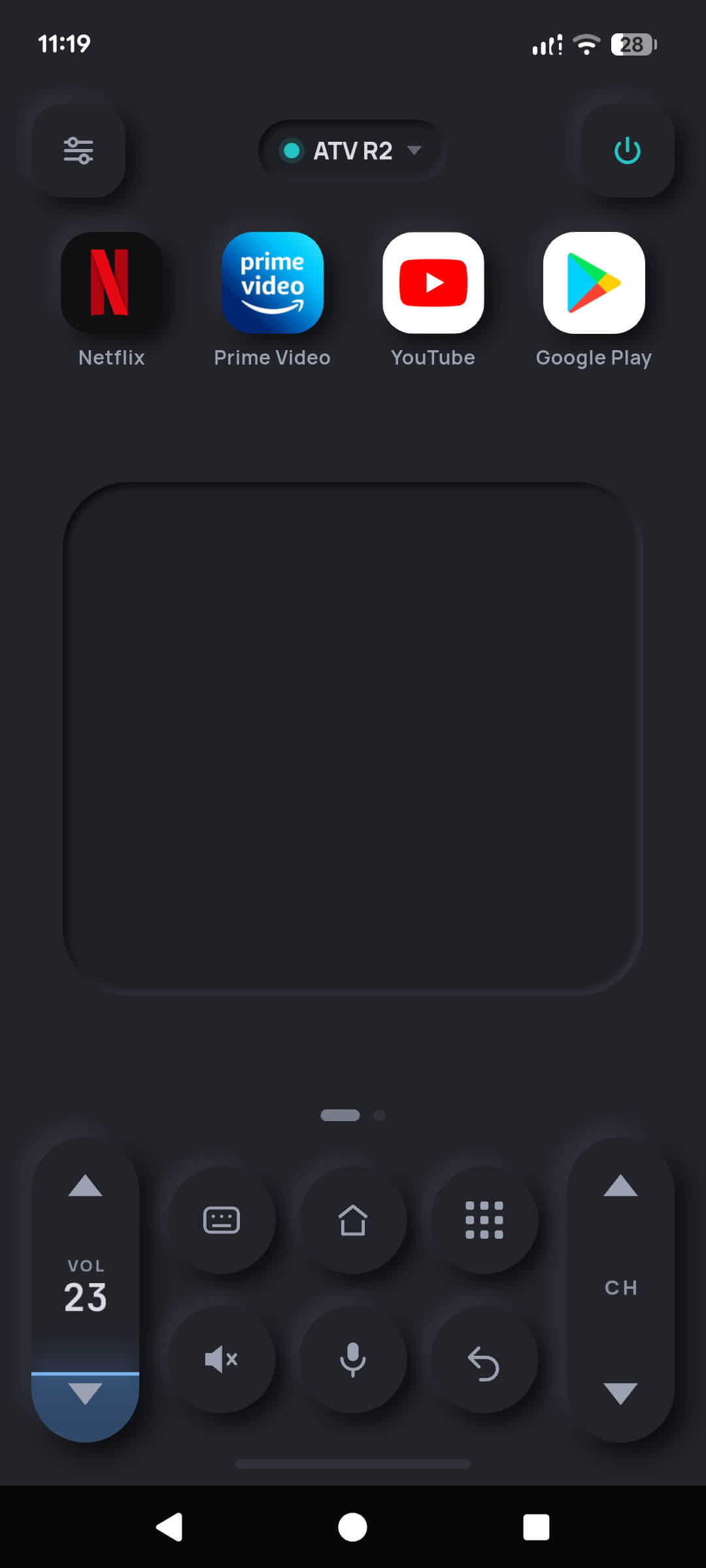
  • A full swipe surface — flick to move, tap to select, for menus that feel better swiped than stepped

Number keypad page

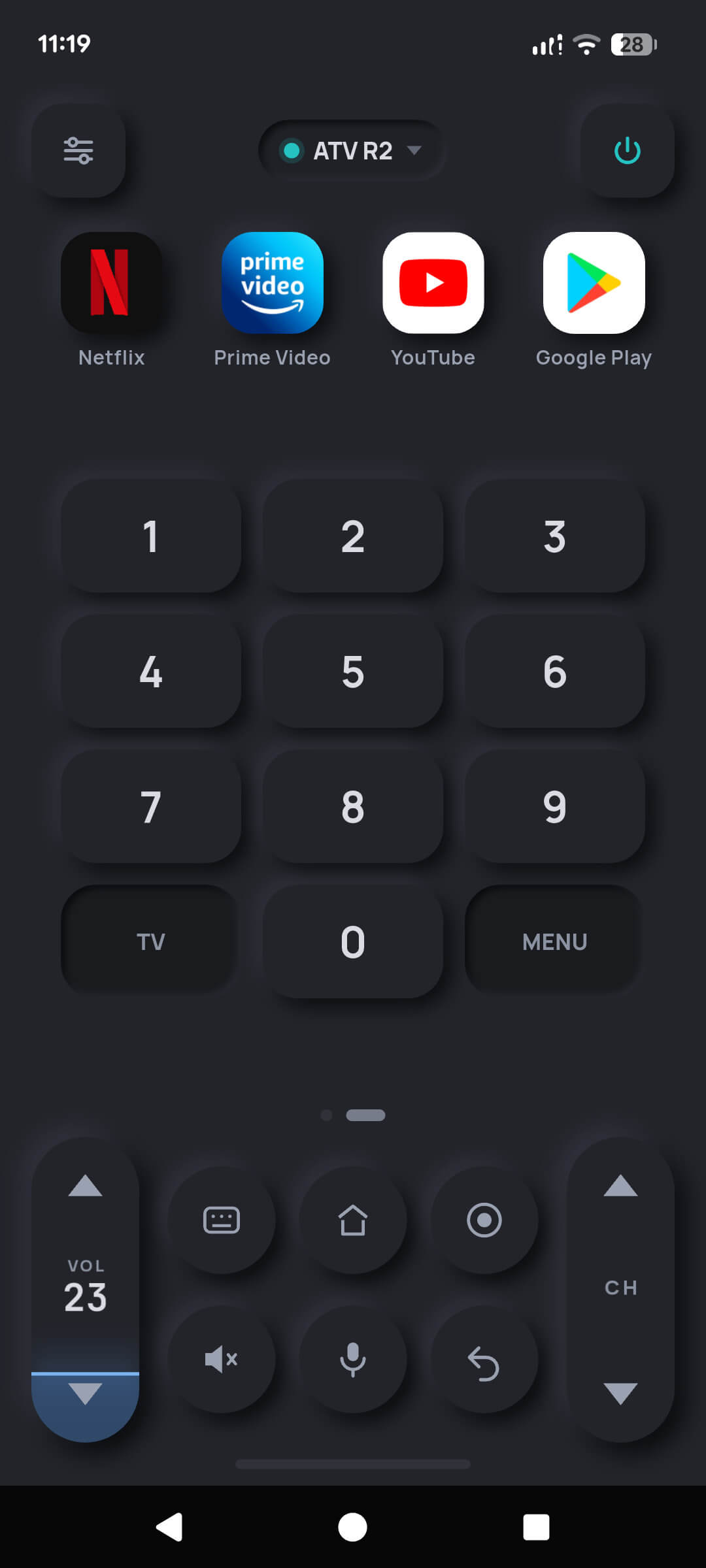
  • Digits 0–9 for channel numbers and PIN entry, plus dedicated TV and MENU keys

Always on screen

  • Volume rocker printed with the television's real volume number, so you can see what you are doing
  • Mute, channel up/down, back, home and power
  • A quick-access row you decide the contents of
  • A context bar reporting what the television is currently playing
TV Remote number keypad page showing digits 0 to 9 with TV and MENU keys beneath the app shortcut row
3 · Typing and talking

The two things a plastic remote simply cannot do

Entering a Wi-Fi password by nudging a D-pad around an on-screen keyboard is the worst experience on any television. Both of the fixes below are free forever, deliberately.

  • Keyboard input — your phone's own keyboard, with autocorrect and every language you have installed, typed straight into the television's text field
  • Voice search — hold the microphone, say a title, and the words are converted to text and typed into the search box
  • Speech is transcribed on the phone wherever the device supports on-device recognition, and the audio itself is never stored or sent by TV Remote
  • Search on TV — jump straight to the television's search, typed or spoken, without navigating there first
  • Paste support, so a password from your password manager goes in with one tap
On speech recognition: where your phone has an on-device model installed, nothing leaves the device. Where it does not, the operating system's own recognition service may process the audio on the vendor's servers — that is the platform's behaviour, not ours, and it is spelled out in the privacy policy.
TV Remote touchpad page: a large blank swipe surface with the keyboard, home, apps, mute, microphone and back keys below
4 · App shortcuts

Launch what you watch, from the remote itself

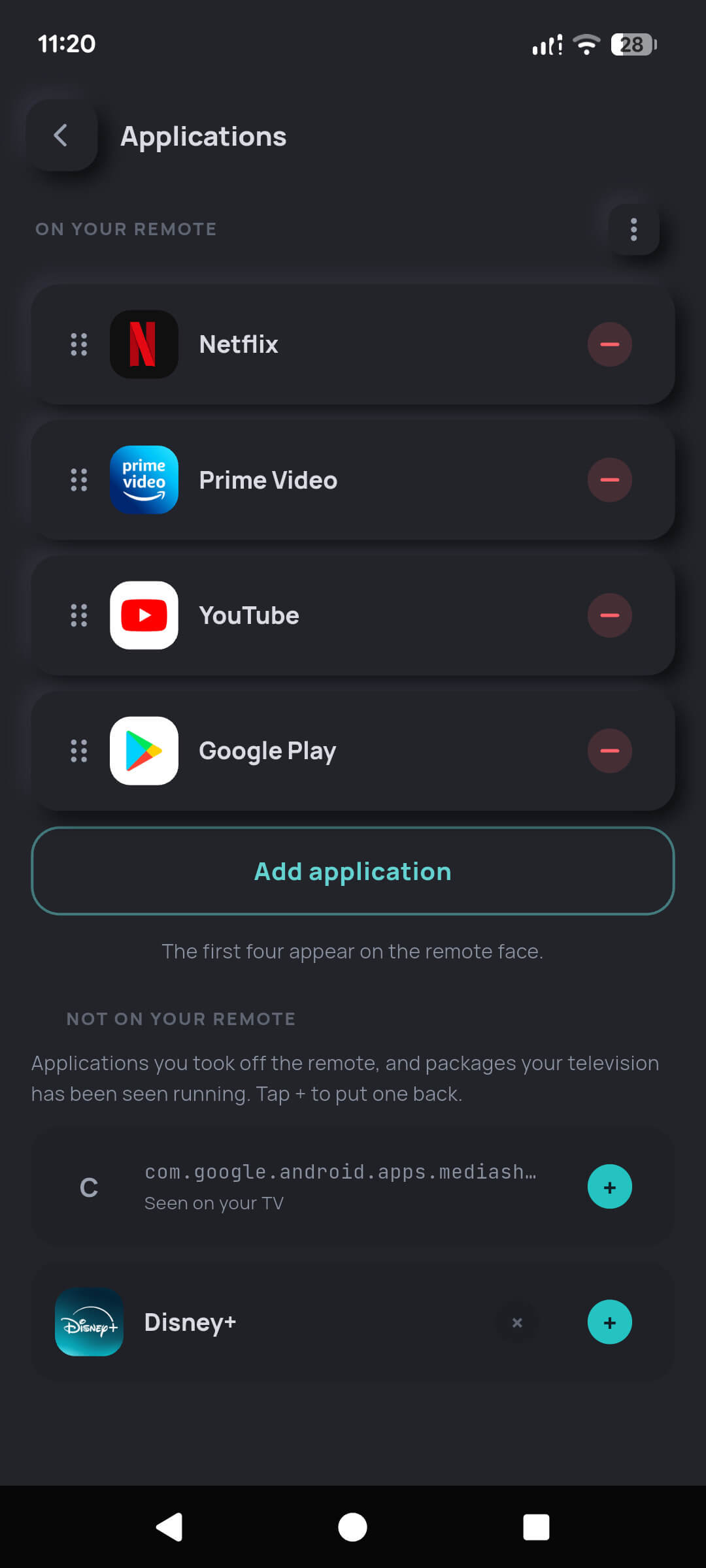
Four applications sit above the D-pad and launch straight on the television. You pick which four, and you drag them into the order you want. This is free — it arranges keys you already have, and charging for tidying is not something we do.

  • Choose any four from a catalogue of the usual suspects — Netflix, Prime Video, YouTube, Disney+, Google Play and more
  • Drag to reorder; the first four appear on the face
  • Learned from your television — packages your set has been seen running are offered so you can add them with one tap
  • Remove what you never use and put it back later; nothing is lost
The Applications settings screen with Netflix, Prime Video, YouTube and Google Play on the remote, drag handles for reordering, and Disney+ available to add
5 · Casting

Your own photos, music and films, on the television

TV Remote finds Cast-capable devices on your network and sends your file to them directly. Your phone serves the file over your own Wi-Fi; it is not uploaded to us, to Google, or to anyone else. When the session ends, the address the television was reading from stops existing.

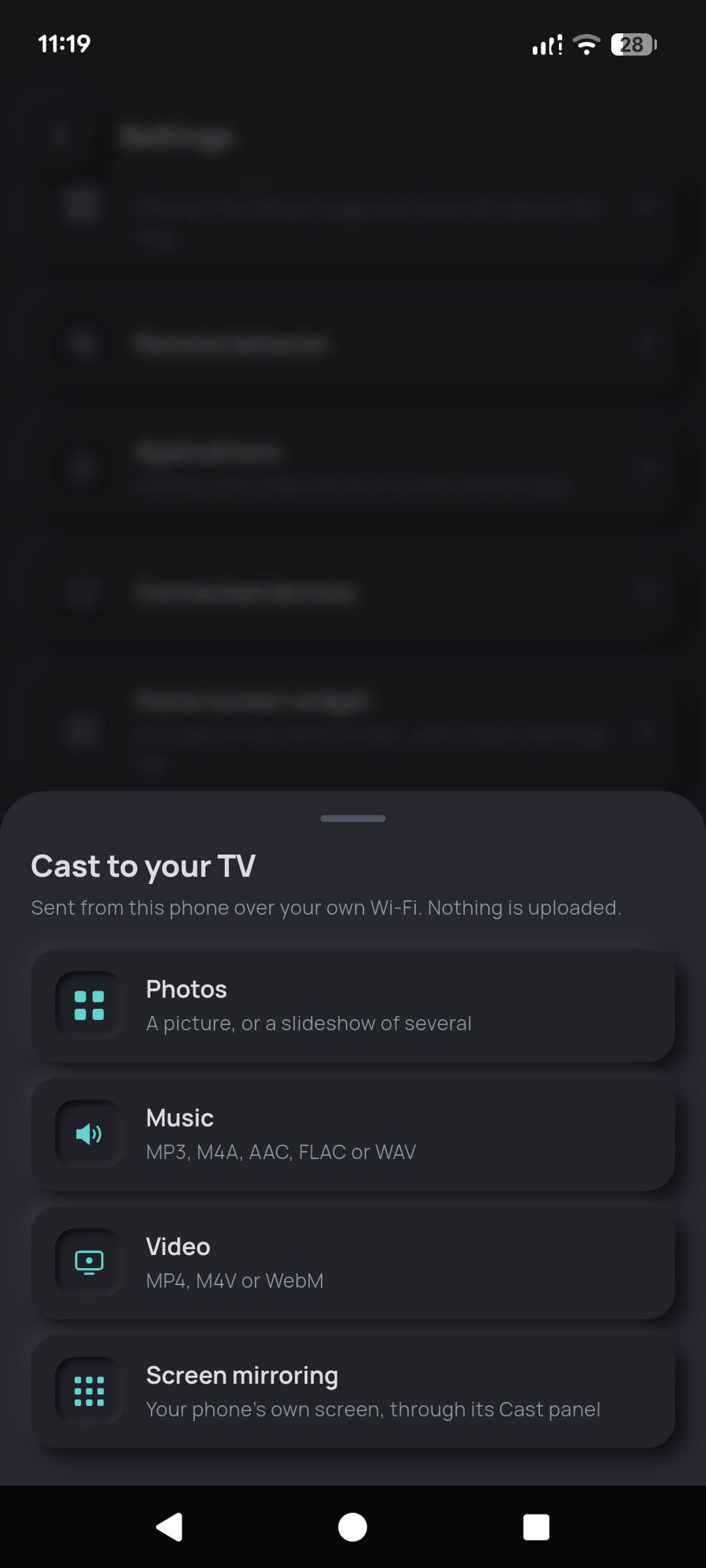
  • Photos — a single picture, or a slideshow of several with an adjustable interval and rotation (free)
  • Music — MP3, M4A, AAC, FLAC and WAV (free)
  • Video — MP4, M4V and WebM (first cast free, then Pro)
  • Now Playing controls — artwork, elapsed time, a working scrubber, ±10 seconds, next and previous, and the television's own volume (Pro)
  • Screen mirroring on Android, handed to your phone's own system Cast panel (Pro, Android only)
  • Honest refusals — MKV and AVI are turned down by name before you pick them, because the television will not play them and there is no transcoder here. A black screen with no explanation is the failure we designed against
Casting and the remote are two different things on the same box. Some paired televisions have no Cast receiver at all. When that is the case, TV Remote says exactly that rather than showing you an empty list and letting you guess.
The Cast to your TV sheet listing photos, music, video and screen mirroring options with supported formats named
6 · Widgets and shortcuts

Press a key without opening the app

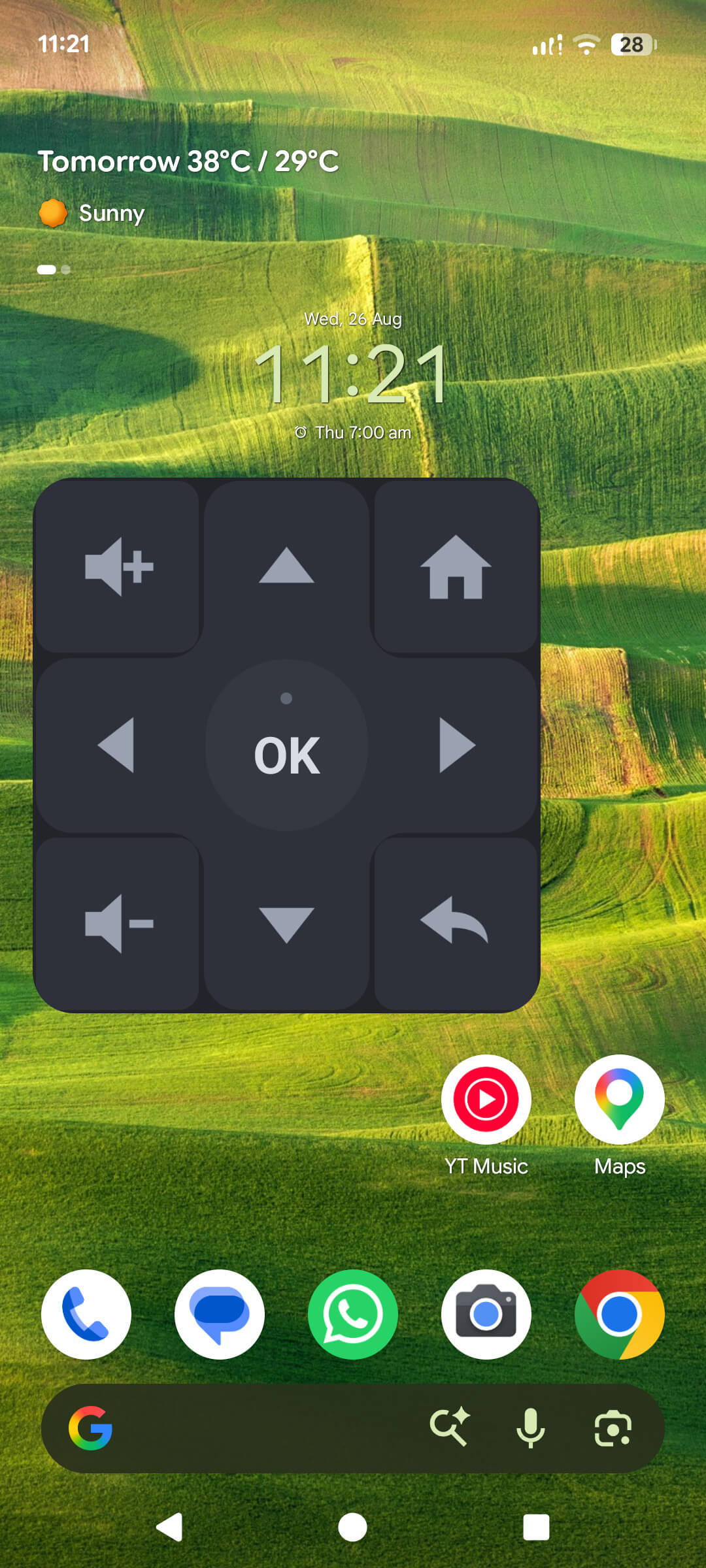
On Android the home-screen widget is a real remote — it opens a connection, sends the key, and hangs up, without ever starting the app. A single dot above the OK key reports whether your last press reached the television.

  • Android home-screen widget — a 3×3 face with a D-pad, OK, volume up and down, home and back, resizable to whatever cell your launcher gives it (Pro)
  • Quick Settings tile — reach the remote from the notification shade, without finding the icon (free)
  • iPhone widget — shows the television you are driving and opens the remote in one tap (free)
  • Both platforms get a guided setup screen inside the app explaining exactly how to place the widget on that platform
Why the iPhone widget does not have working keys. iOS does not reliably allow a widget's network calls while the host app is closed, and Local Network permission is per-app and unpredictable on recent iOS versions. A remote button that only works when the app is already open is not a feature, so we ship the widget as a door rather than pretending otherwise.
The Android home-screen widget on a phone home screen: a three-by-three grid with volume up, up arrow, home, left, OK, right, volume down, down arrow and back
7 · Automations and personalisation

The rest of it

Automations PRO

  • Sleep timer — fall asleep to a film and have the television switch itself off at a time you set
  • Wake TV — send a wake-on-LAN packet to a set that is already powered down, where the hardware supports it

Wake TV is reliable on Ethernet-connected devices such as an NVIDIA SHIELD. Televisions on Wi-Fi usually cut the radio in deep power-off and cannot hear the packet — the app says so rather than claiming a success it cannot verify.

Appearance

  • Dark, Light, or follow your system — free, always. Legibility is an accessibility setting, not an upsell
  • Both themes are fully drawn skeuomorphic faces, not one theme with inverted colours

Remote layout FREE

  • Choose which page opens by default — D-pad, touchpad or keypad
  • Decide what sits in the quick-access row above the ring

Remote behaviour FREE

  • Haptics on or off, per your taste
  • Hold-to-repeat for the directional keys
  • Theater mode — dim the phone screen so it does not light up the room
  • Hardware volume keys — let your phone's physical volume buttons drive the television
  • Keep the screen awake while the remote is open

Multiple televisions

  • Two saved televisions on the free tier — a two-set household is the normal case, and we never gate below it
  • Unlimited with Pro, switched from a picker at the top of the remote

Help built in

  • Diagnostics with a shareable report that carries only what it says it carries
  • FAQ inside the app, written for the failures that actually happen
  • Feedback straight to a human, with no device fingerprint quietly attached
The split

Free versus TV Remote Pro, line by line

One rule decides every row: everything in the press path — discover, pair, connect, press, type, speak — stays free forever.

Feature availability in TV Remote free and TV Remote Pro ($1.99, one payment)
FeatureFreePro
Discovery, pairing and unlimited pairings
Add a television by IP address
D-pad, volume, power, OK, back, home
Touchpad and number keypad pages
Keyboard typing and voice search
Search on the television, typed or spoken
Four app shortcuts, chosen and reordered
Remote layout and all behaviour settings
Dark, light and follow-system themes
Cast photos and slideshows
Cast music
Quick Settings tile (Android) and iPhone widget
Diagnostics and demo mode
Saved televisions2Unlimited
Cast videoFirst cast free
AdvertisementsShownNone
Now Playing controls — artwork, scrub, queue
Android home-screen widget with working keys
Sleep timer and Wake TV
Screen mirroring (Android)
About the advertisements

The rules we hold ourselves to on the free tier

A remote is a reflex surface. An advertisement between "I want to pause" and the pause landing is the fastest way to make an app like this unusable. So the free tier carries ads under written rules:

  • Never on a key press. Not on it, not over it, not after it
  • Never while pairing, never during a reconnection, never on the discovery screen
  • One slot on the remote face, at the bottom, in space reserved in the layout — so nothing on screen ever shifts when an ad loads or fails to load
  • Full-screen ads only at natural boundaries — leaving settings, finishing a cast — and never within 30 seconds of another
  • The "remove ads" offer is our own screen, not a served advertisement. It stops asking after the third time you dismiss it, permanently

TV Remote Pro removes all of it for a single $1.99 payment. What Google's advertising SDK collects while ads are on is itemised in the privacy policy.