For Android phones and tablets

TV Remote for Android

The complete edition. Everything TV Remote does, it does on Android — including the two things iOS cannot offer: a home-screen widget with keys that actually press, and screen mirroring to your television.

  • Android 7.0 or newer
  • Free with ads
  • Pro $1.99 once
  • No IR blaster needed
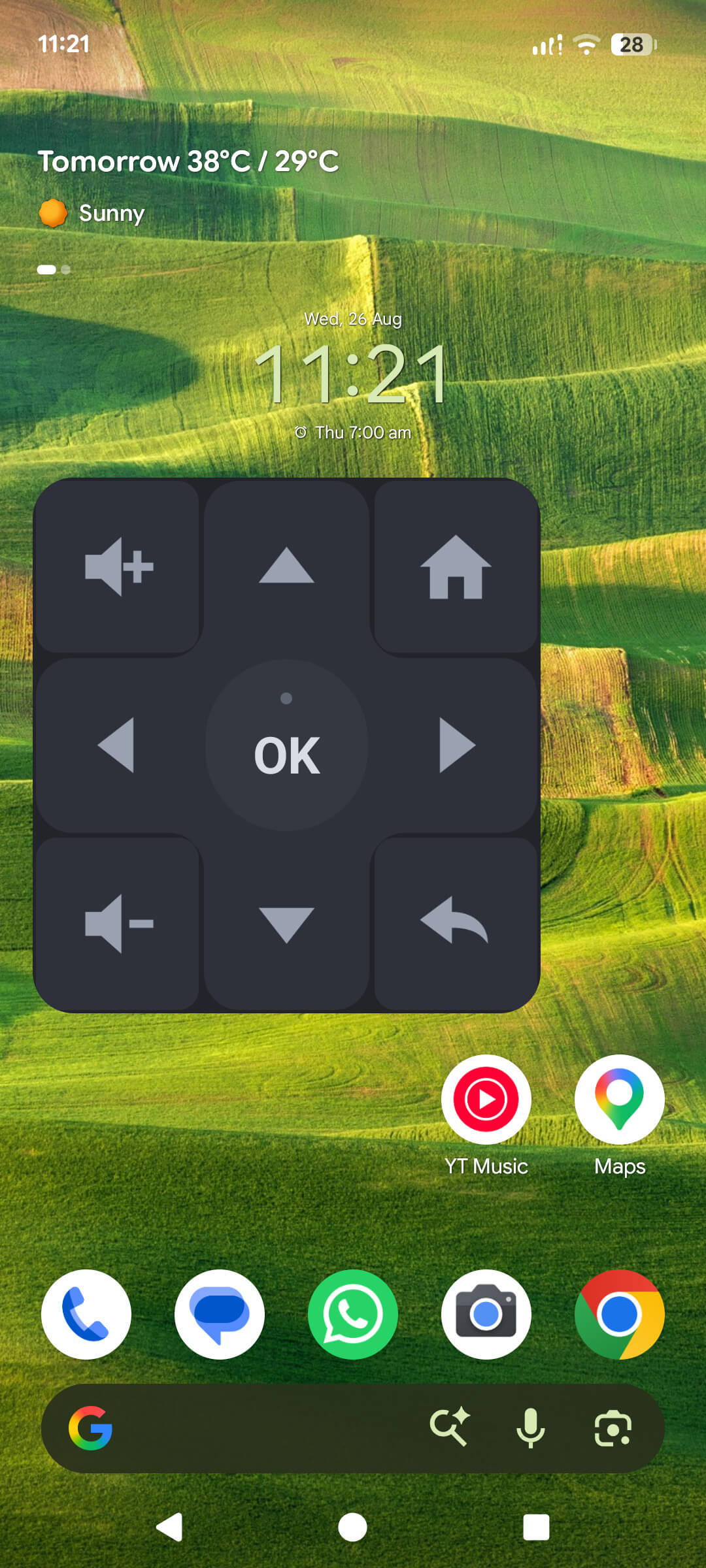
An Android home screen with the TV Remote widget: a three-by-three D-pad with volume, home and back keys
Android only

What you get here that iPhone cannot have

Two features, both blocked on iOS by the platform rather than by us.

A home-screen widget that really is a remote

A 3×3 face — D-pad, OK, volume up and down, home and back — sitting on your home screen. Press a key and it opens a secure connection to your television, sends the key, and hangs up. The app never launches. Total time: a couple of seconds, well inside Android's budget for background work.

  • Resizable — it fills whatever cell your launcher gives it, and the glyphs scale to match
  • A single dot above OK reports the last press: green if it reached the television, red if it did not
  • Pairing credentials are read straight from Android's Keystore-backed encrypted store; no second copy of your keys is ever made
  • Part of TV Remote Pro

Screen mirroring to your television

Put your phone's own screen on the television. TV Remote hands this to your phone's built-in system Cast panel rather than re-implementing it — which means it uses your manufacturer's own tested mirroring, works on every device that supports mirroring at all, and adds none of the 5–15 second lag a home-rolled pipeline would.

  • Opens the panel you may already recognise from your phone's quick settings
  • Available on devices whose manufacturer supports mirroring
  • Part of TV Remote Pro

Quick Settings tile — free

Pull down the notification shade and the remote is one tap away, no home-screen hunting.

Hardware volume keys

Let your phone's physical volume buttons drive the television's volume while the remote is open.

Discovery through Android's own NSD

The app uses NsdManager and takes a multicast lock while it searches, rather than opening a socket of its own.

Requirements and permissions

What the Android app needs, and why

Every permission below exists for a feature you can point at. Nothing is requested "just in case", and nothing is used for tracking beyond what the advertising SDK needs on the free tier.

Android permissions requested by TV Remote and what each is for
PermissionWhy it is needed
INTERNETOpens the local network socket to your television, and fetches advertisements on the free tier.
ACCESS_WIFI_STATEReads the Wi-Fi state so the app can tell you when you are not on a network that could reach a television.
CHANGE_WIFI_MULTICAST_STATETakes a multicast lock while searching for televisions. Without it, Android silently drops the discovery responses.
RECORD_AUDIOVoice search — only while you hold the microphone button. Nothing is recorded otherwise.
VIBRATEHaptic feedback on button presses. Turn it off in Remote behaviour and it is never used.
READ_MEDIA_IMAGES / _VIDEO / _AUDIOPicking the photo, film or track you want to cast. Requested at the moment you cast, not at launch.
FOREGROUND_SERVICE + _MEDIA_PLAYBACKKeeps the phone serving a file to the television for the length of a cast, so Android's power saving cannot kill playback mid-film.
POST_NOTIFICATIONSThe notification that a foreground cast service is legally required to show, and the sleep-timer notice.
com.google.android.gms.permission.AD_IDThe advertising identifier, used by Google's ad SDK on the free tier. Buying Pro removes the ads and this use with them.

Minimum Android version

Android 7.0 (API 24) or newer, phone or tablet.

Network

The phone and the television on the same Wi-Fi, with device-to-device traffic allowed. Mobile data cannot reach your television.

Hardware

No infrared blaster required. The app works over Wi-Fi and does not need line of sight.

Step by step

How to use your Android phone as an Android TV remote

  1. Install TV Remote from Google Play and open it.
  2. Check the Wi-Fi. The phone and the television must be on the same network. A guest network usually will not work.
  3. Pick your television from the list the app shows. If it is missing, tap Enter IP address and type the address from your television's Settings › Network.
  4. Type the six-character code that appears on the television screen.
  5. Press a key. You are on the remote, and the pairing is remembered.
  6. Optional — add the widget. Long-press an empty spot on your home screen, choose Widgets, find TV Remote, and drag it out. Or open Settings › Home screen widget in the app, which can place it for you on launchers that allow it.